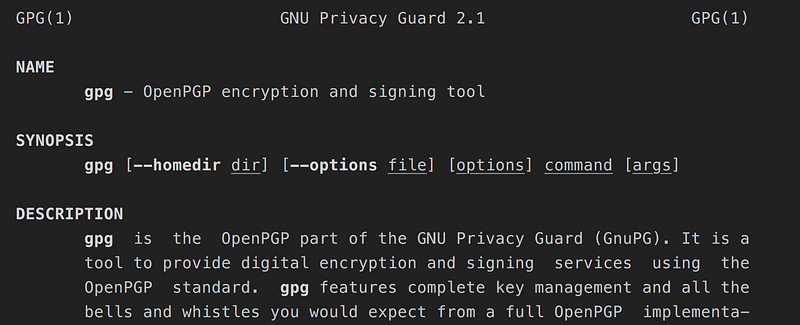
I recently discovered GPG and how awesome it is. Shortly after that, I discovered CLI-GPG’s documentation, and how not-awesome it is.
The man page is comprehensive but unwieldy — more like a glossary than a tutorial.
There’s The GNU Privacy Handbook. It’s more instructive than the man page, but it’s outdated. It demonstrates gpg 0.9.4 (1999). As of today, gpg 2.2.3 (2017) is the current version. Between the 2 versions, there is good interoperability. But there are enough differences to frustrate/deter beginners.
It took me the greater part of a day to begin basic tasks with GPG. Here, I’ll list common tasks and how to perform them with modern gpg 2.2.3.
This post was originally intended for future Anton, but maybe others will make use of it too!
This article assumes you understand the basics of public key cryptography, the heart of the OpenPGP protocol.
This article also assumes you’re using MacOS and that you have the Homebrew Package Manager installed.
Unless otherwise specified, a “key” (primary key, subkey, etc.) refers to a keyPAIR of public and private keys. I think this is confusing. We should always say keyPAIR if we mean a pair of 1 public key and 1 private key.
Unfortunately, referring to a keypair as a “key” is standard. So in this article, I will abide.
I know you’re dying to get started sending cryptographically secure messages to all your buddies. So, let’s begin!
Installing GPG
brew install gpg
 As of this day, the latest version is 2.2.3
Generating Keys
gpg --full-generate-key

The --full-generate-key option will guide you through each step with helpful dialogs.
The steps:
- Choosing your key types. By default, GPG uses 1 primary key for authentication/signing, and 1 subkey for encryption/decryption. These two keys can utilize different cryptosystems. (E.g. a DSA key for signing and an ElGamal key for encryption/decryption.) However, GPG uses RSA for both keys by default. Unless you know what you’re doing, I would just stick with the RSA+RSA default.
- Choosing keysizes. Your keys can be between 1024 and 4096 bits long. The default keysize is 2048 bits long. Shorter keysizes are less secure, but more performant. Longer keysizes are more secure, but less performant. I usually opt for the max keysize: 4096 bits.
- Setting an expiration date. You can set your key to expire in N days, weeks, months, or years. Or, you can set it to never expire. The default setting is — no expiration date. If you are some high-profile person who’s constantly at risk of having keys stolen, then perhaps you’d like to set an expiration date. Otherwise, I see no reason to do this, so long as you guard your private keys properly.
- Fill out your user ID information. Give your name, email address, and any comments you’d like to add. This information will be attached to your keys.
- Set a passphrase.
For added security,
gpgwill prompt you for a passphrase every time you perform some operation that requires access to your private keys. - Move your mouse and spam your keyboard. All of the above cryptosystems rely on random numbers to generate keys. Computers aren’t capable of generating truly random numbers. They rely on a plethora of inputs with wide value-ranges to generate numbers that seem random. Mouse position and keystrokes are part of those inputs, among other things. To increase the randomness of your keys, manipulate these inputs during this section.
You’ve created your keys! In the output, you’ll see rows for your primary keypair’s public key, user ID, and sub-keypair’s public key.
Listing public keys
gpg --list-public keys
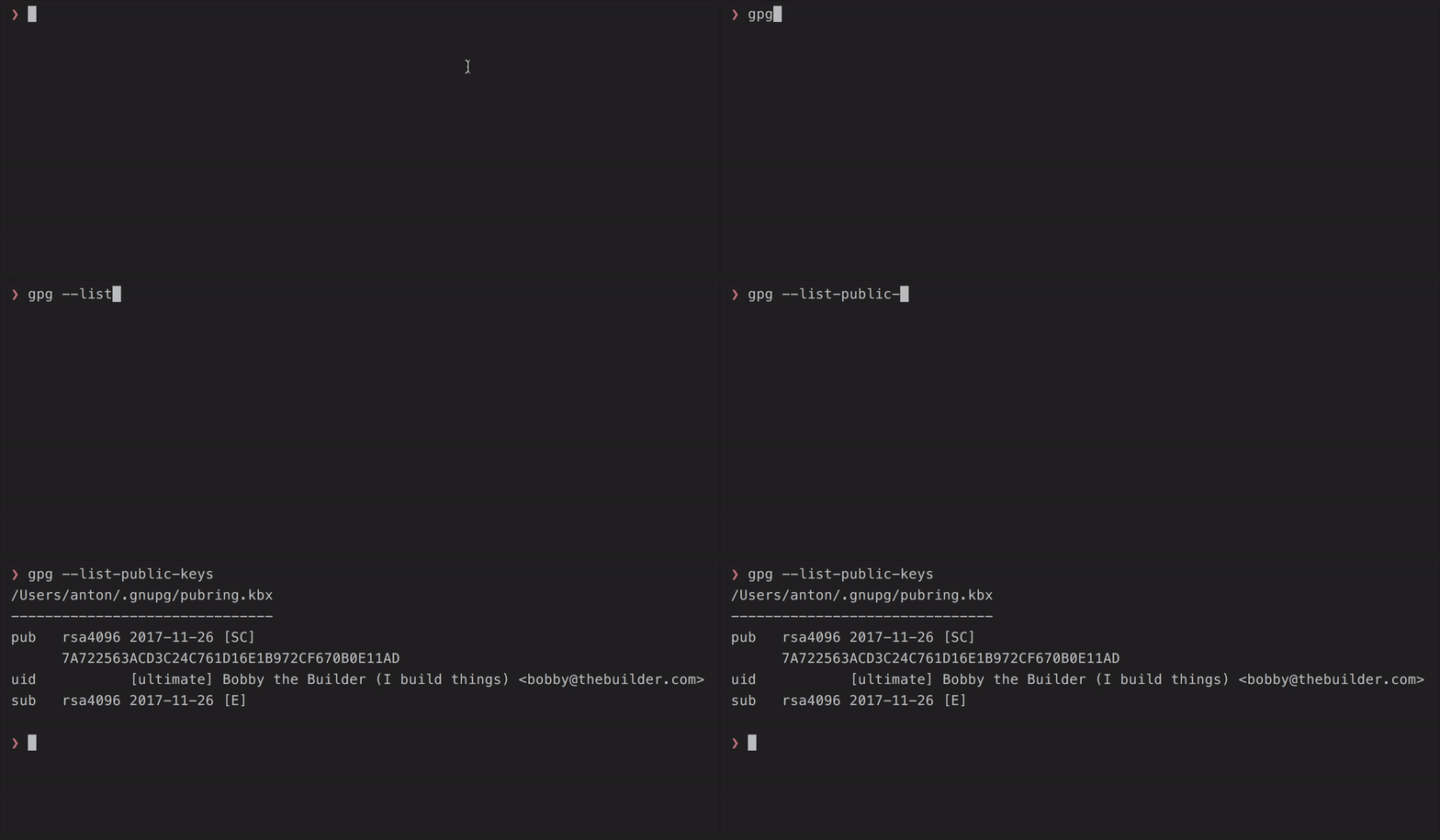
This provides information about the public keys in your “contacts list”.
This won’t list the contents of the public keys, only metadata such as cryptosystem, keysize, and date-of-creation.
It will also show the associated user ID for a given set of public keys.
The fingerprints of primary-public keys will also be shown.
According to Wikipedia,
A public key fingerprint is a short sequence of bytes used to identify a longer public key. Fingerprints are created by applying a cryptographic hash function to a public key. Since fingerprints are shorter than the keys they refer to, they can be used to simplify certain key management tasks.
Listing ALL public keys fingerprints (Primary Keys + Subkeys)
gpg --fingerprint --fingerprint
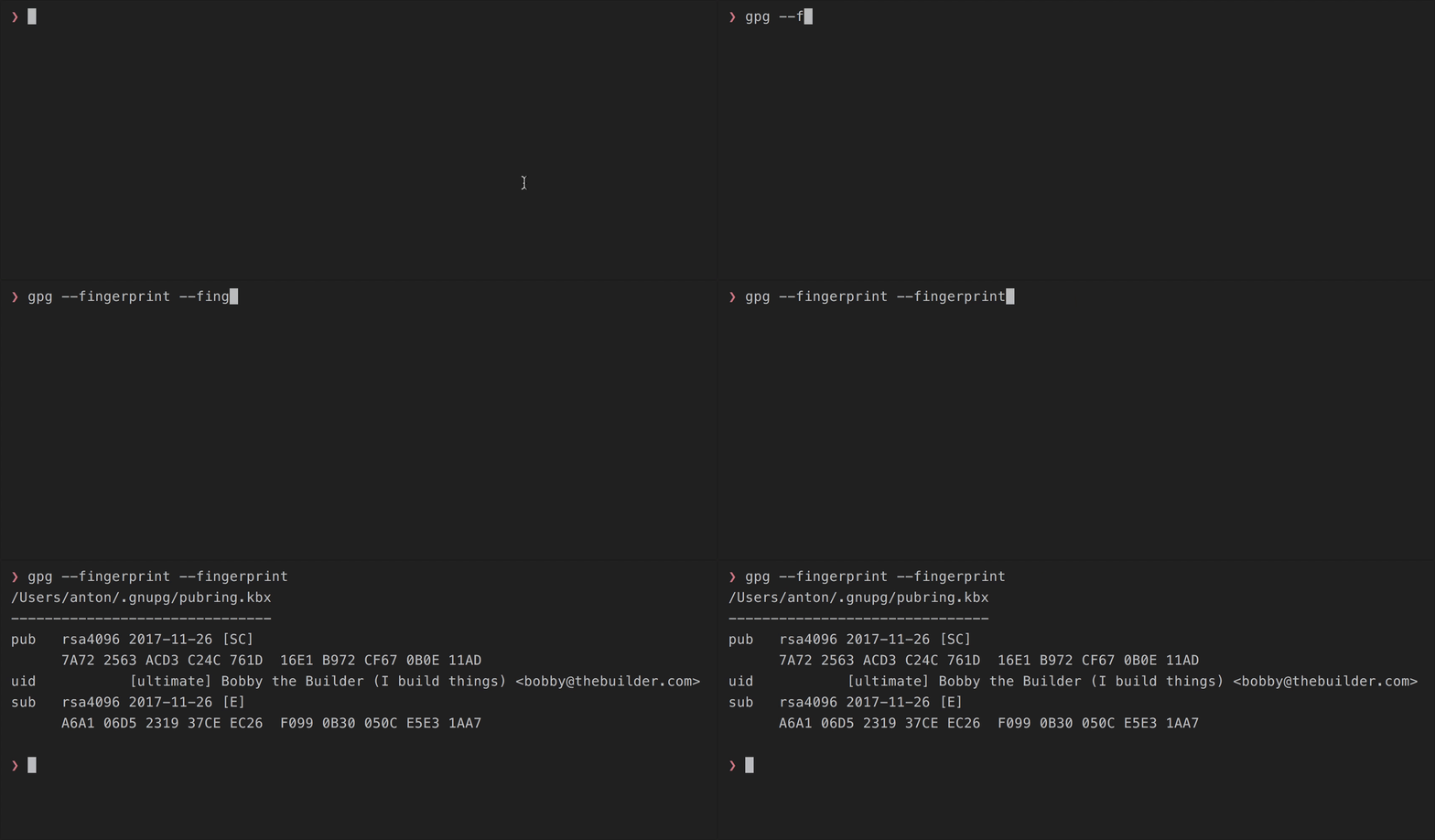
You must give the --fingerprint command twice.
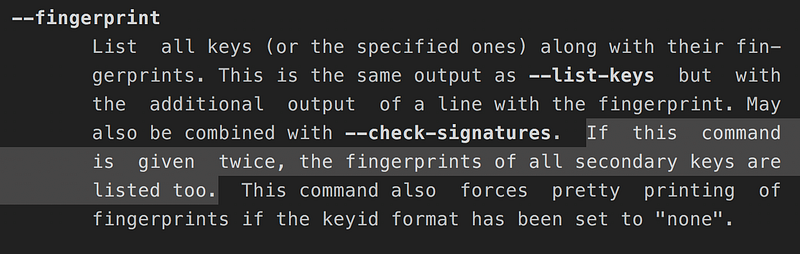 Relevant snippet from gpg manpage.
Listing private keys
gpg --list-secret-keys
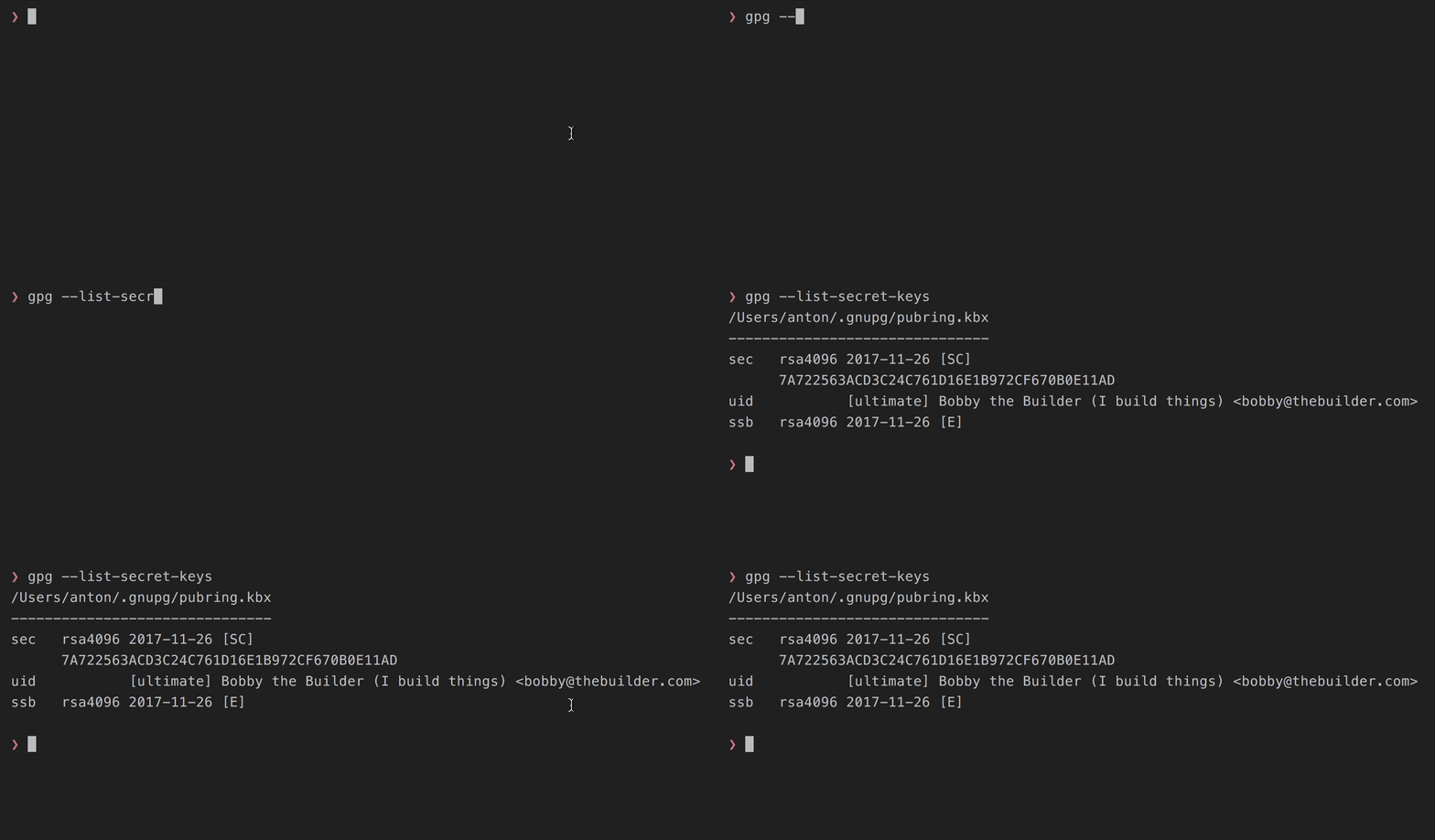
This provides information about the private keys you have.
For me, this output is identical to gpg --list-public-keys because I have all the private keys for each keypair I have.
It’s possible to only have the private key/public key of a given keypair. If you have that asymmetry, then your gpg --list-secret-keys would give different output from your gpg --list-public-keys.
Why is it called secret keys?
According to dave_thompson_085 on this serverfault post,
gpg calls private keys ‘secret’ because PGP dates from before people settled on the names ‘private’ key for the half of an asymmetric pair held by (ideally) only one party versus ‘secret’ key for a symmetric value usually held by two or more mutually trusting parties but nobody else.
Listing key IDs
gpg --list-public-keys --keyid-format none|short|0xshort|long|0xlong

Various gpg operations target keys. E.g. deleting keys, signing files with a specific private key, etc. To specify a key, you must provide some sort of key-identification.
Key IDs fulfill this purpose.
Key IDs are essentially abbreviations of fingerprints. Here’s a guide to key ID formats, given by Jens Erat on this superuser post.
Fingerprint: 0D69 E11F 12BD BA07 7B37  26AB 4E1F 799A A4FF 2279
Long key ID:                                4E1F 799A A4FF 2279
Short key ID:                                         A4FF 2279
A short key ID is the last 8 characters of the fingerprint.
A long key ID is the last 16 characters of the fingerprint.
0xshort and 0xlong simply prefix 0x to the short and long key IDs respectively.
E.g. a short key ID would be A4FF2279. The corresponding 0xshort key ID
would be 0xA4FF2279.
The 0x is sometimes used to explicitly note that the key ID is a hex value.
Encrypting a message (binary encoding)
gpg --encrypt --recipient 'some user ID value' <file>
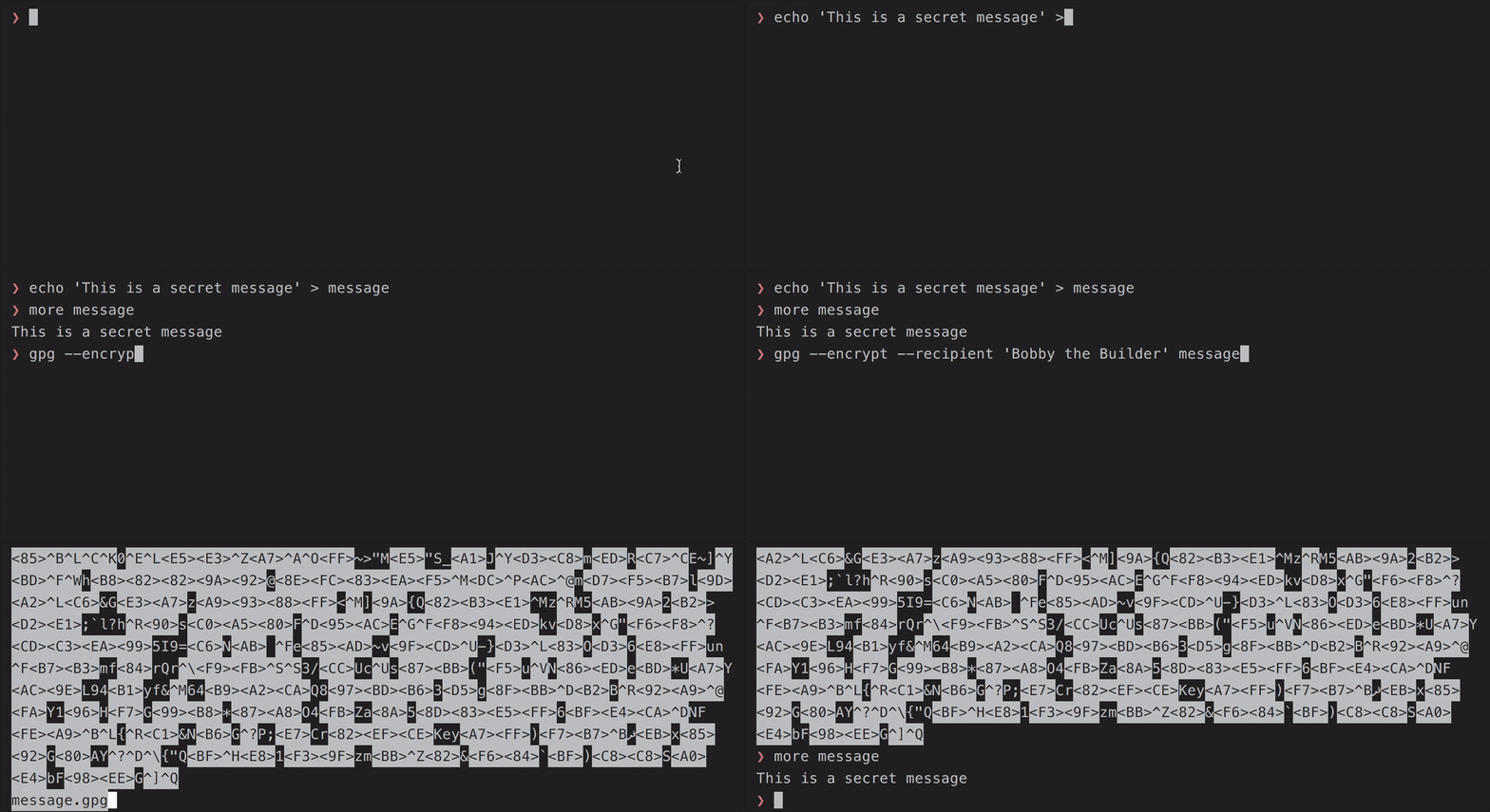
The default encryption format is in binary. If you’re exchanging messages via entire files, this is fine.
However, if you wish to copy/paste your encrypted message on a website (go check out /r/GPGpractice!), binary won’t work.
You can’t copy/paste/type binary like normal text. If you want to interact with the encrypted message like normal text, you’ll need to encode the message in ASCII armor using the --armor option. (See below)
By default, the encrypted file’s name is <filename>.gpg. But you can specify a different filename using the --output option. (See below.)
Encrypting a message (ASCII Armor)
gpg --encrypt --armor --recipient 'some user ID value' <file>

The --armor option encodes the encrypted message in ASCII armor. This allows you to interact with your encrypted message like normal text.
With the binary encryption, you couldn’t copy/paste/type it onto a forum or in an email. You can’t do that with binary.
But with ASCII text, you can.
Specifying an encrypted file’s filename
gpg --output <file> --encrypt --recipient 'some userID value' <file>

The --output option can also be used with other operations, such as decrypting a file and signing a file.
Decrypting a message
gpg --decrypt <encrypted-file>

By default, gpg will print the decrypted message to STDOUT.
You can write the decrypted message to a file using the --output option, like how it was used with encryption above.
Writing the decrypted message to a file
gpg --output <file> --decrypt <encrypted-file>

Signing a file (binary encoding)
gpg --sign <file>

Signing a file produces a new, signed file that’s binary encoded.
IMPORTANT NOTE: Signing and encrypting a single document is a common task.
People encrypt their documents to ensure that only a specific recipient can read them (encryption).
People sign their documents to assure others that the document was sent by the themselves — that the document-sender’s identify wasn’t spoofed (authentication)…
…AND to assure others that the document was not modified from the original (integrity check).
It’s common to perform both operations on a given document.
When you gpg --sign a document, the output is in binary.
So you might think that you’ve encrypted the document, in addition to signing it.
You technically have, but you practically haven’t.
I say technically, because the document was indeed encrypted with your private key. To read the signed document, it must be decrypted with your public key.
But from an encryption standpoint, how useless is that? Your public key is widely available. Basically anyone can decrypt it. That’s not secure at all.
Bad things might happen if you post sensitive documents, thinking that they’re properly encrypted…
TL;DR: Documents signed with gpg --sign are binary-encoded. The binary encoding might persuade you that a document is also encrypted. It’s not. But you might think it is. So, you might publicly post documents, thinking they’re encrypted. You might post sensitive information — that everyone can decrypt with your public key. That’s not secure at all.
Signing a file (readable message)
gpg --clearsign <file>

With normal gpg --sign, the outputted document is binary-encoded.
Often, you don’t want this. You want the message to immediately readable, without having to decrypt it with the corresponding public key.
In other words, you just want the message to be verifiable. You don’t care that everyone can see the message.
gpg --clearsign allows this. Like with gpg --sign, this embeds your signature into the outputted document.
But as the name implies, the contents of the document are clear. I.e. they’re still readable without any decryption.
Signing a file (detached signature — in binary)
gpg --detach-sign <file>

Sometimes, you want a signature to be separate from its corresponding file.
You’d likely do this with any file that isn’t a plaintext message. E.g. programs, videos, images, audio, etc.
Why? Because signing a file alters its contents. Altering the contents of a program-file, video, etc. could break it.
Example: Signing a simple node.js program, rendering the signed file unexecutable.

Signing a file (detached signature — ASCII armor)
gpg --armor --detach-sign <file>

With a typical gpg --detach-sign <file>, the detached signature binary-encoded.
As mentioned above, binary is cumbersome for copy/pasting onto web forums, email, etc.
If you’d like to copy/paste/type your detached signature as such, encode it with ASCII armor using the --armor option.
Signing a file (specifying output file’s filename)
gpg --output <file> --sign <file>

You can use the --output option to specify the outputted file’s filename.
You can also do this with ASCII-armored/clearsign signatures and detached signatures.
Verifying a signed file (binary encoded)
gpg --verify <signed-file>

A signed-file that’s binary-encoded is unreadable (unless you can read binary!).
When using gpg --verify on a binary-encoded signed-file, it will only inform you of the file’s authenticity. It won’t decode the file for you.
If you want to decode the file/make it readable, you need to gpg --decrypt it.
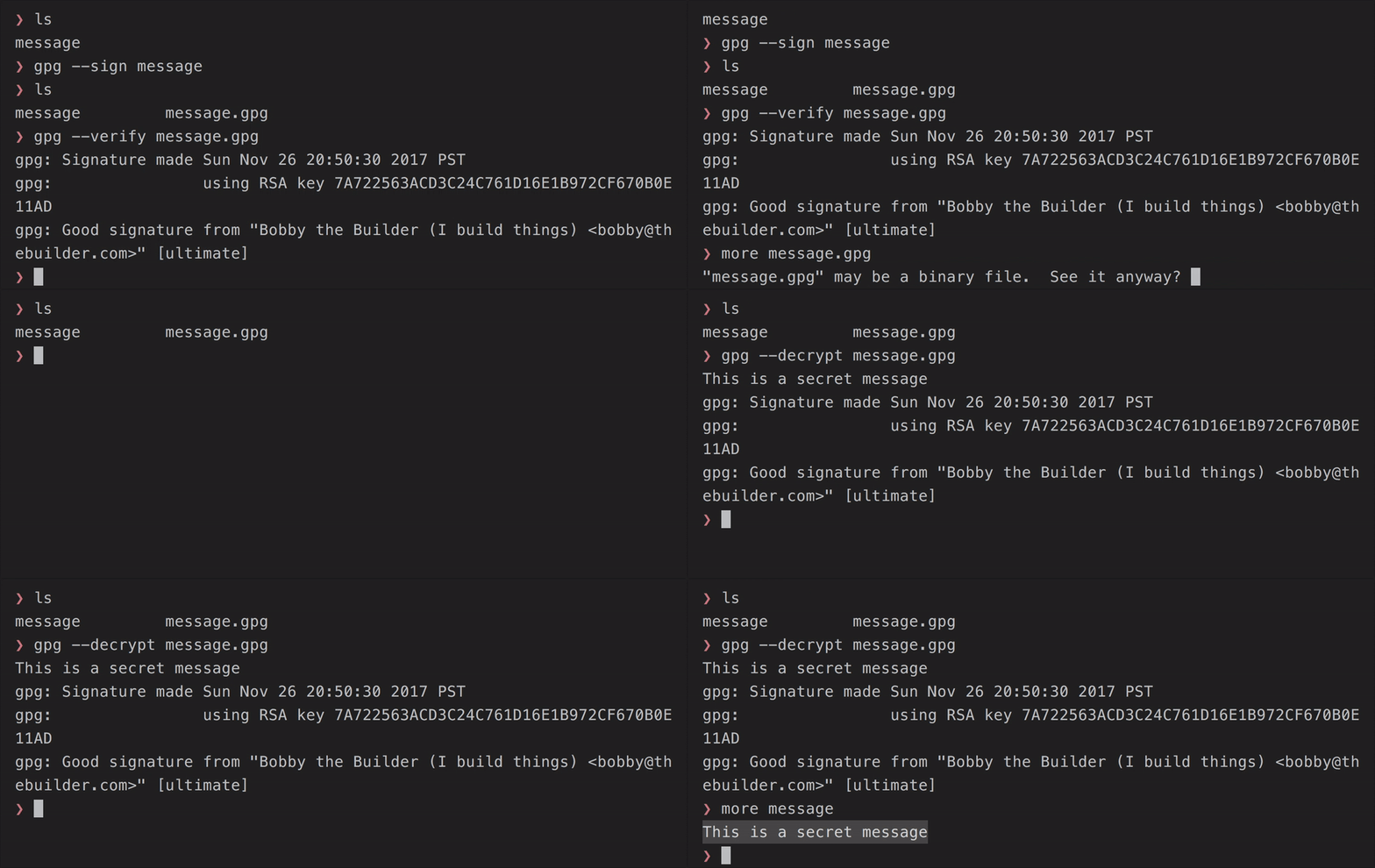
Note: Running gpg --decrypt on a binary-encoded signed-file will also inform you of the file’s authenticity — as shown above.
I.e. Running gpg --decrypt on a binary-encoded signed-file does gpg --decrypt and gpg --verify.
Verifying a signed file (clearsigned)
gpg --verify <clearsigned-file>

Verifying a signed-file with ASCII-armor is identical to verifying the binary-encoded counterpart.
Though, what’s nice is that you don’t have to gpg --decrypt the ASCII-armor signed-file to read it, since it was readable to begin with. (That is the nature of clearsigned files.)
Verifying a file with a detached signature
gpg --verify <detached-signature-file> <corresponding-content-file>

The process is identical for both binary-encoded detached signatures and ASCII-armored detached signatures.
For fun, you can try tampering with the corresponding content-file for a detached signature. You’ll see it fail.

Exporting a PUBLIC key (binary encoded)
gpg --export <key ID>

This prints the key to STDOUT in binary.
This isn’t really useful, but this is the base-functionality of the command.
Exporting a PUBLIC key (ASCII armor)
gpg --armor --export <key ID>

This prints the key to STDOUT in ASCII-armor.
Exporting a PUBLIC key (write to a file)
gpg --output <file> --export <key ID>

This exports the given public key (in binary encoding) to the given file.
If you wish to export the key in ASCII-armor, simply use the --armor option.
Exporting PRIVATE keys
gpg --export-secret-keys
< I’m not gonna show a video of this lol. >
I don’t believe you can export a single private key by passing a <key ID>. Based on the man gpg, I think you can only export ALL private keys.
Importing a Public Key
gpg --import <public-key-file>

If you run gpg --list-public-keys, you’ll see the newly added key in the listing.
Importing a Private Key
gpg --import <private-key-file>
The procedure for importing private keys is identical to the procedure for importing public keys.
If you run gpg --list-secret-keys, you’ll see the newly added private key to the listing.
Deleting a Key
gpg --delete-key <key ID>

Searching for a Public Key on a Keyserver
gpg --keyserver <URL without scheme> --search-keys <string of info>

DO NOT INCLUDE THE URL SCHEME WHEN SPECIFYING A KEYSERVER.
E.g. DON’T INCLUDE http:// OR https:// . THIS HAS CAUSED ME A LOT OF HEADACHE.
There are various PGP Public Key Registries online. These registries are meant to facilitate the exchange of people’s public keys.
Here are a few major ones:
The good thing about these registries — they are all part of the SKS Pool.
The SKS Pool is a large, decentralized network of servers hosting PGP key registries.
Changes among individuals servers propagate across the entire pool, keeping the whole pool synchronized.
So, if you submit your key/update your key on one server’s registry, your key will eventually be updated across all servers’ registries. Very cool!
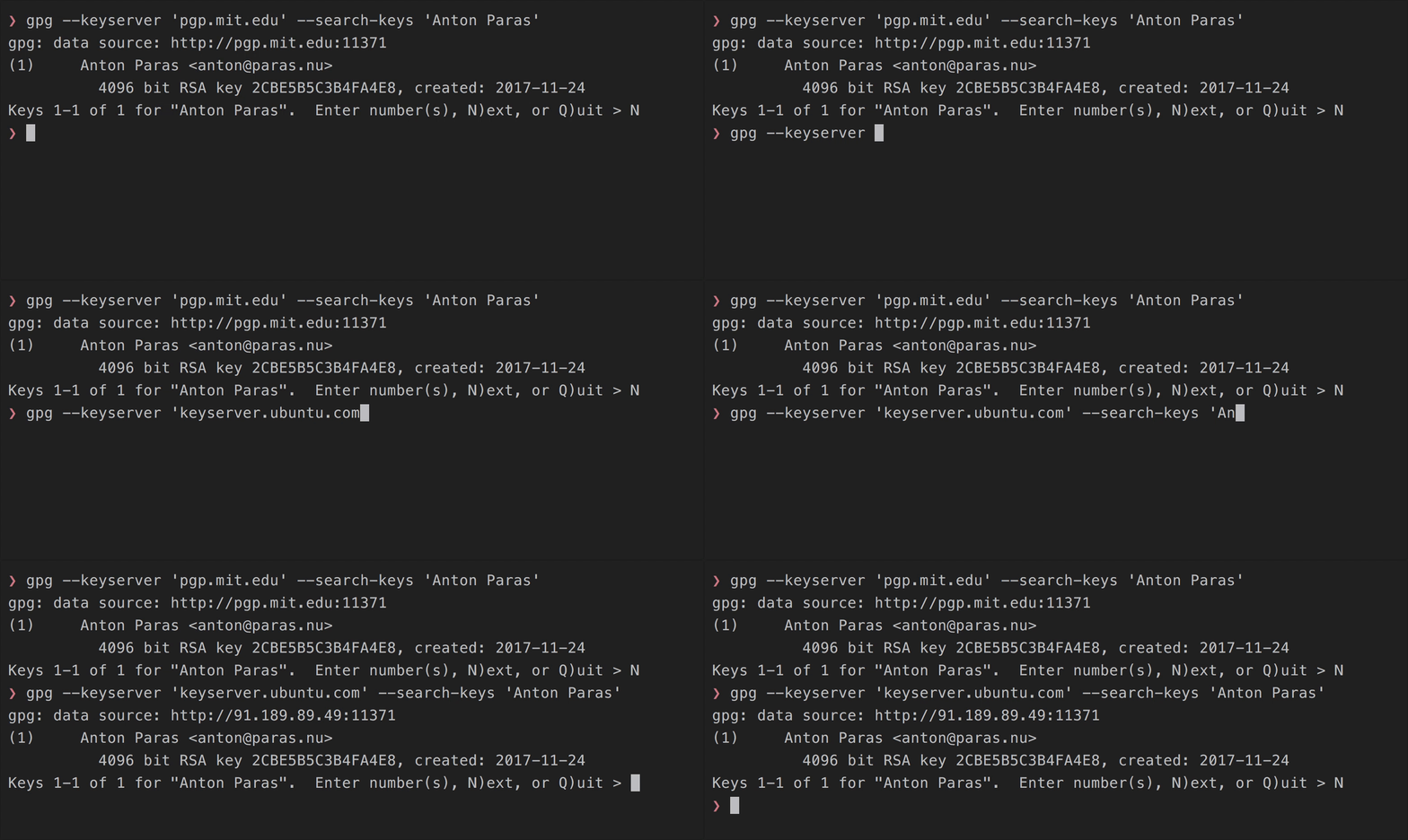
For example, I originally submitted my key to pgp.mit.edu, but it has already propagated to keyserver.ubuntu.com. Check it out!
Importing a Public Key from a Keyserver
gpg --keyserver --receive-keys <key ID>
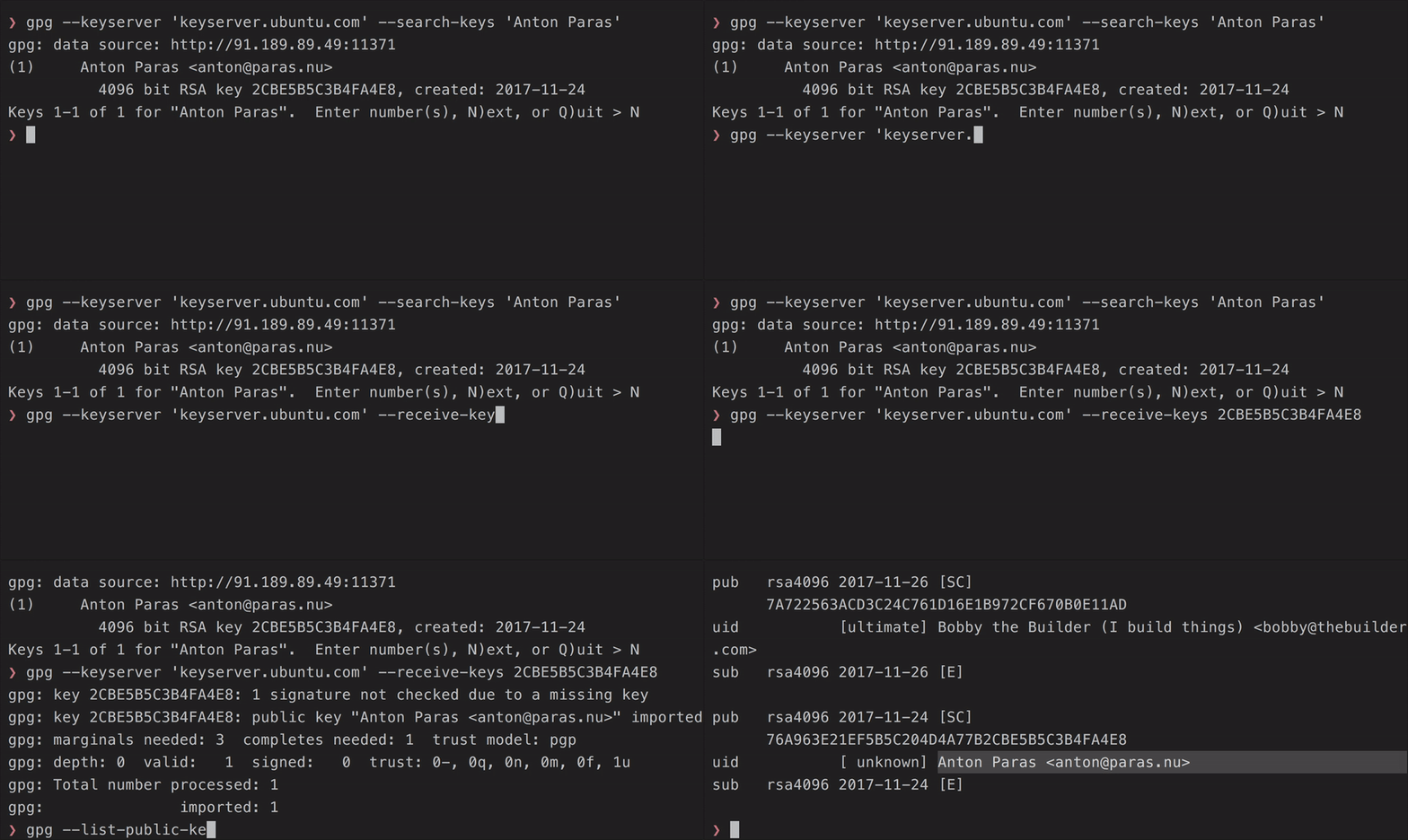
Sending a Public Key to a Keyserver
gpg --keyserver <URI> --send-keys <key ID>
< I didn’t record a video because I didn’t want to send this dummy PGP key to all the servers in the SKS pool. >
For many keyservers, there are also websites with GUIs for searching for keys/submitting keys.
Example: https://pgp.mit.edu's website
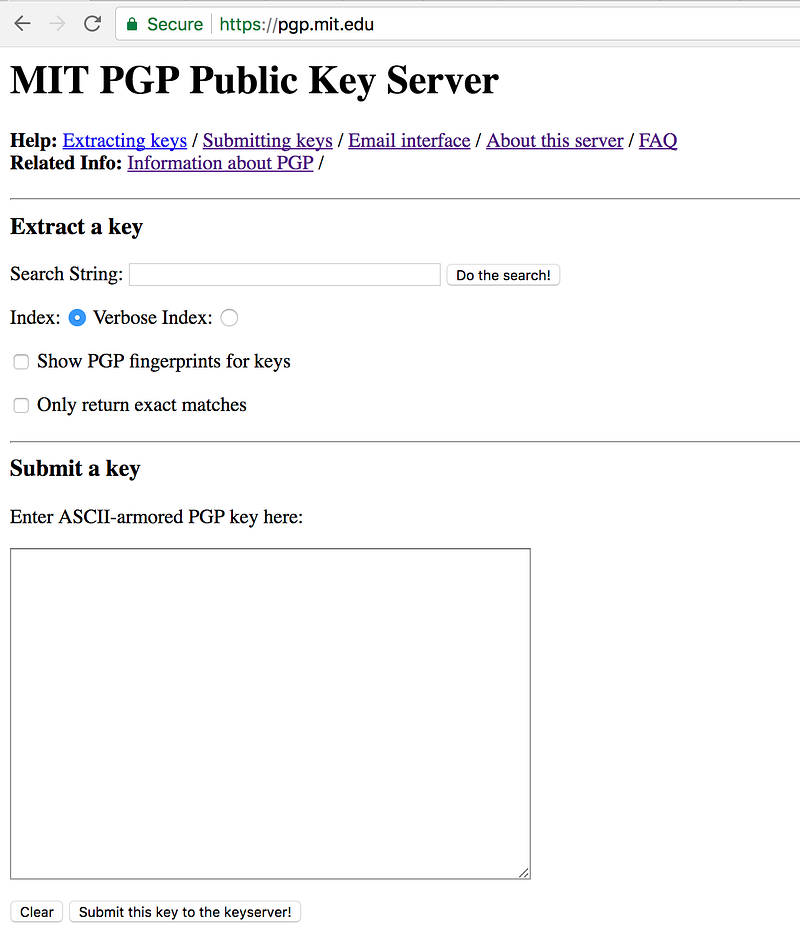 Minimal UI for searching for keys/submitting keys.
Refreshing Keys
gpg --keyserver <URI> --refresh-keys

Sometimes, you’d like to update all the public keys you have on your public keyring.
Over time, some public keys on your ring may get new signatures, modified user IDs, etc.
That’s why it’s useful to refresh the public keys on your public keyring every once-in-a-while.
Setting a Default Keyserver
Add the following line to your ~/.gnupg/gpg.conf
keyserver <URL without scheme>
E.g.
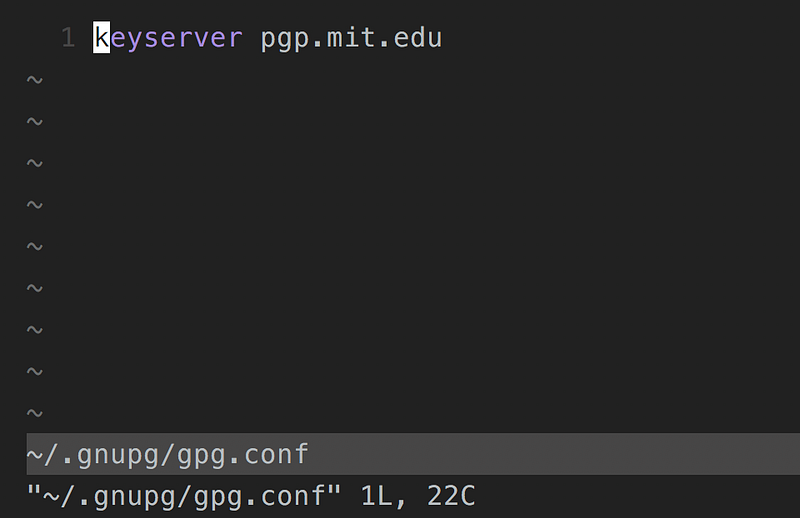
Now, you don’t need to specify a --keyserver for the operations above.

Signing Others’ Public Keys
gpg --sign-key <key ID>
 I did not actually upload that signature to the SKS pool. That would be unethical of me.
Signing others’ public keys is an important part of the PGP system. The PGP system is very community-oriented. It relies on a so-called “Web of Trust”.
Consider this: There is nothing stopping someone from publishing public keys under YOUR name.
How would people know that that public key is a spoof — that an impostor made it — that it’s not really yours?
By building your true public key’s reputation.
PGP requires community involvement. You should always sign public keys you KNOW are real.
E.g. you know the public key that Bob gave to you is legitimate, so you should sign it.
Then, you can send it back to him ( gpg --export ).
Or, you can submit the newly-signed key to a public key registry in the SKS pool ( gpg --send-keys ). Your signature on Bob’s key will propagate throughout the SKS pool.
With this, public keys circulate with signatures attached to them.
Then, we can have the following situation:
- I trust Alice.
- I import a public key under the name of “Bob”.
- I see that Alice has signed this public key.
- Thus, Alice is claiming that this “Bob” is legit.
- I trust Alice, so by extension, I trust “Bob” to really be Bob.
- I trust Bob.
As more people sign public keys AFTER VERIFYING THAT THEY’RE LEGIT, you can start to see the “Web of Trust” grow.
This is how we ensure authenticity of identity in the PGP community.
Listing signatures on a Public Key
gpg --check-signatures <key ID>
If you omit <key ID>, it will print all signatures on all public keys on your public keyring.
Conclusion
Whew, that was a lot to cover! The gpg tool is very featureful and quite fun to use, but the documentation can be quite frustrating.
Hopefully this article helped you out in that respect. I know it will help future me!
Opinions expressed in these articles do not represent those of my employer.