I am going to talk about a subject that is part of the communication between a web browser(user) and a server(host). Throughout my studies on JavaScript language, I have reached one of the main sections of the JavaScript functionality: the ability to request, transfer and manipulate data on the web. Along with the knowledge of JavaScript Objects, methods, properties and other topics that makes you able to develop skills and write in JS computer language, I was later introduced to the Fetch method.
As a method on the global Window Object, with Fetch we are able to request data from a server, get the information back and then use the data as we wish. The type of server I have been using to practice retrieving data, is a public API (application programming interface), which is an open data base that web developers can work with freely. Some examples can be found on the following website: https://mixedanalytics.com/blog/list-actually-free-open-no-auth-needed-apis/.
Another way — and that’s a useful one to practice the communication with a server — is with a mocking local API. For that, you can install the json-server globally through your terminal:

With the json-server installed, we are now able to create .json files to retrieve data from our local API mocking server. Json is the format used to send and request information to/from a server. It looks like a JavaScript Object, but it’s wrapped in quotes:
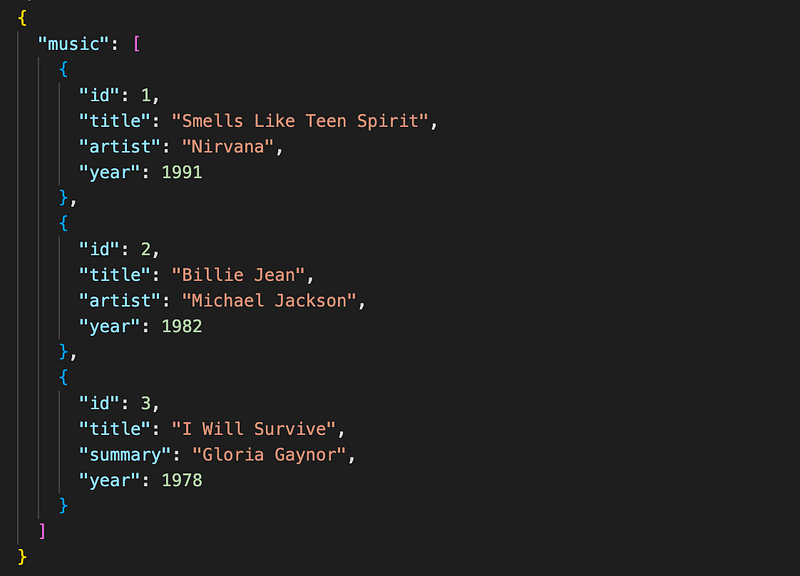
Observing the .json file above, you can see that the data is wrapped with curly braces, like a JS Object, and its value is an array-like Object that contains information about music data.
For us to be able to work with the data of a json file, we need to be in the directory that contains the file and run the following:
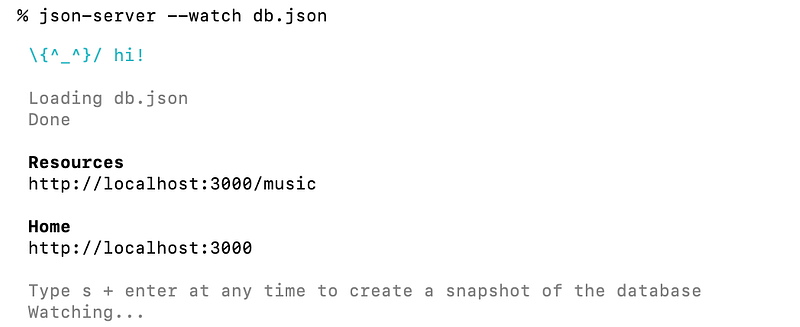
Our json-server is now watching the db.json so we can iterate with it in JavaScript, before a few important steps. The Resources URL is mocking a server in our local machine and the data of the db.json is with the path of /music.
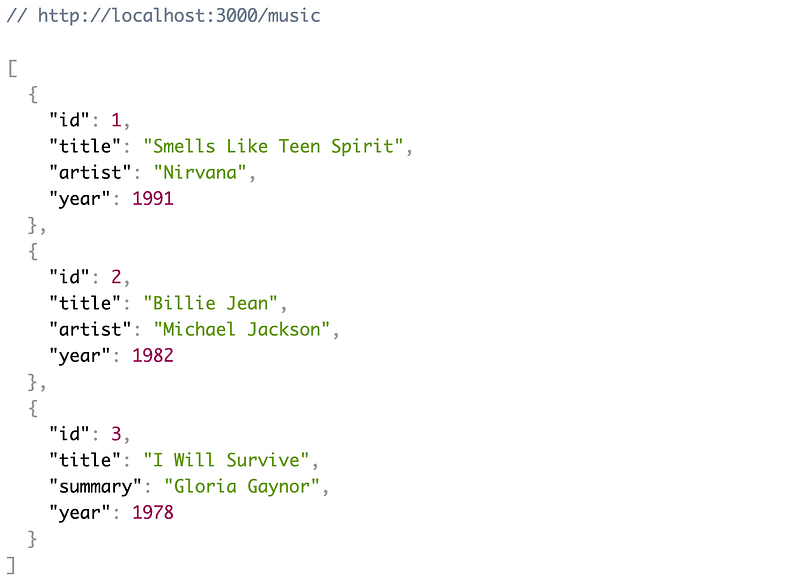
We now have our mocking local server all set up for the communication between the client and the server. If you copy the Resources URL and paste it on your web browser, you will see the music data from our JSON file:
There are some types of fetch requests that we can work with to manipulate data and they are represented by the acronym CRUD:
- Create → Stands for the POST method on a HTTP request
- Read → Stands for the GET method on a HTTP request
- Update → Stands for the PUT method on a HTTP request
- Delete → Stands for the DELETE method on a HTTP request
HTTP(HyperText Transfer Protocol) is the protocol format based on the client/server request and response of data on the web. I am going to show an example of a GET request, which will retrieve data from the local server and after I will console log it.
In our JavaScript file, in the same directory of the JSON data file, I will create a FETCH request, which takes the URL as a parameter, containing the data we would like to retrieve:

A fetch request requires at least one parameter, the URL as a string. The second parameter is optional and will be an object containing information about the method, a body, headers and other options that we can use to customize our request.
However, in this post I will show how to do a fetch request with one parameter, that implicitly stands for the GET method and retrieves data from a server data base. Then, we can chain to our code the .then method which will return a promise. If the promise is fulfilled, then it will be resolved to a response:

As already mentioned, the format of communication used to transfer data is in JSON format. So with our response of our GET request from the server, we need to be able to work with the data in JavaScript. For that, we will use the .json() method, which parses the JSON data received from the server into a JavaScript Object so we can iterate with. Then we can use the parsed data and console log it to check our output:

Checking our console with the Chrome Dev Tools, we have the following:

As we were expecting, the data received from our local server is now an Array-Object that we can iterate with. The array contains three elements, each one being an Object of a song data with its key-value pairs properties of title, id, artist and year. It’s the same data from our previous JSON file but now in a JavaScript Object format.
As an example, let’s get the title of each music data. For that, we can iterate with our Array using the .map method, which returns the same length array but modified as we want:
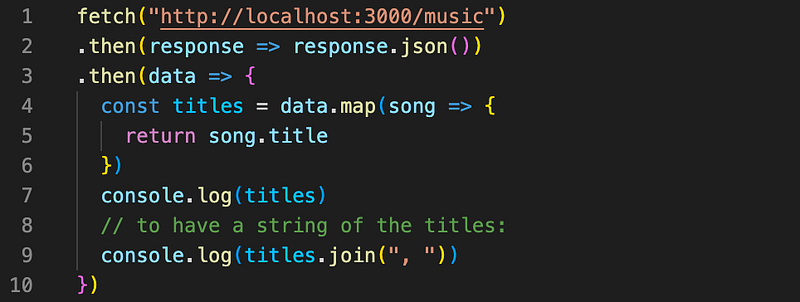
Above, we are accessing the song Object and returning its title(line 5). As the .map method on the Array Object returns the modified element for all the elements, we should expect the following output:

We have console logged the titles constant variable and got back the same length data array, but now with the modified elements(line 7). I also added a method on the titles array called .join, in the case we would like to have the array on a String format.
We went trough all those steps to explain how a GET request fetch method works with a local server and gave some examples of retrieved data manipulation. Now that we know how to get our JSON data from our local machine and convert it into a JavaScript Object, we can use the data as we want!
Here is a resume of the steps:
- Start the json server command on terminal to watch the db.json data file;
- Use the fetch method to parse the data URL as a String parameter;
- Parse the returned data from JSON to a JavaScript Object with .json method.
There are many ways we can use our retrieved data with JavaScript and it’s essential to make sure we follow the correct steps so we can retrieve data and be able to manipulate it in our web applications.