Part 1: Project set-up

The Goal
By the end of this article, you’ll know how to create API endpoints to interact with an AI Agent capable of calling tools. We’ll cover setting up a virtual environment, installing dependencies, configuring a Django project with the Django Ninja API framework, and enabling JWT authentication. We’ll use Pydantic AI as our agent framework and connect all the pieces to create a tool-based “roll a dice” game as a proof of concept.
Prerequisites
To complete this guide, you’ll need:
- A working Ollama server (this can be substituted by commercial LLM provider but this will not be covered in this guide)
- Basic familiarity with Python
- A computer (Linux preferred, but Mac or Windows will work)
The Stack
The core of our stack is the Ollama server, which should already be running on your local network. Note your server’s IP address and pull at least one tool-capable model, such as qwen3 or llama3.2.

Next, we’ll use Django, a powerful ORM (Object Relational Mapper) that provides a database-abstraction API for creating, retrieving, updating, and deleting objects. Django will manage user accounts and give our AI agents memory.
Django Ninja is a great addition to Django, allowing you to create API endpoints with just a few lines of code and generating automatic API documentation.

Pydantic AI is a production-ready agent framework that integrates the Model Context Protocol, Agent2Agent, and various UI event stream standards. This enables your agent to access external tools and data, interoperate with other agents, and build interactive applications with streaming event-based communication.

The final addition to our stack is PostgreSQL database, and more importantly it’s vector store addition, PGVector. We will first set up the database within our Django project and in later articles we will implement the PGVector as one of the types of AI Agent memory
Step 1: Directory Structure and Virtual Environment
We’ll follow the standard Django structure, with a slight modification for better organization:
ai-agent/backend/src
I prefer to keep frontend and backend code in the same project directory, with the backend separated and the Django project inside a src folder. This helps with Docker deployment later.
Open your terminal, navigate to your project folder, and run:
python -m venv .env
This creates a .env folder for your virtual environment. Before activating it, let’s add two environment variables (OLLAMA_HOST and OLLAMA_BASE_URL) used by Pydantic AI to interact with Ollama. Edit the activation script:
#.env/bin/activate

deactivate () {
    unset OLLAMA_HOST
    unset OLLAMA_BASE_URL

# a lot of other code

# add following lines at the end of the script
# use your Ollama server IP address
export OLLAMA_HOST="http://<your_server_address>:11434"
export OLLAMA_BASE_URL="$OLLAMA_HOST/v1"
Now activate your virtual environment (on Ubuntu/Linux):
# ai-agent/backend/src

source .env/bin/activate
You should see (.env) at the start of your prompt, indicating the environment is active.
Installing dependencies and setting up Django project
Create a requirements.txt file in ai-agent/backend/src:
# ai-agent/backend/src/requirements.txt

django
django-ninja
django-ninja-extra
django-ninja-jwt

ollama
pydantic-ai

psycopg2-binary
pgvector
Install the dependencies:
# ai-agent/backend/src

pip install -r requirements.txt
Once installation is complete, start a new Django project. I use “core” as the project name but you can give it any name that works for you. The dot at the end of the command instructs django-admin to install Django in the current directory ai-agent/backend/src
# ai-agent/backend/src

django-admin startproject core .
This creates the core directory and manage.py file. Next, add a chat app:
# ai-agent/backend/src

python manage.py startapp chatbot
Setting up PostgreSQL database
The assumption is that you have PostgreSQL installed on your development PC. If it’s a fresh installation you can log in with
sudo -u postgres psql
Once logged in, run following instructions:
CREATE DATABASE myproject;
CREATE USER myprojectuser WITH PASSWORD 'password';
ALTER ROLE myprojectuser SET client_encoding TO 'utf8';
ALTER ROLE myprojectuser SET default_transaction_isolation TO 'read committed';
ALTER ROLE myprojectuser SET timezone TO 'UTC';
GRANT ALL PRIVILEGES ON DATABASE myproject TO myprojectuser;
Once those steps are completed, you are ready to add the database connection
Configure Django Settings
Edit core/settings.py:
# ai-agent/backend/src/core/settings.py

# locate ALLOWED_HOSTS and update as follows

ALLOWED_HOSTS = ['*']

# locate INSTALLED_APPS and add the following

INSTALLED_APPS = [
    # existing apps

    # Third-party apps

    'ninja_extra',
    'ninja_jwt',

    # Local apps

    'core',
    'chatbot',
]

DATABASES = {
    'default': {
        'ENGINE': 'django.db.backends.postgresql_psycopg2',
        'NAME': 'myproject',
        'USER': 'myprojectuser',
        'PASSWORD': 'password',
        'HOST': 'localhost',
        'PORT': '',
    }
}
Creating the API
Create core/api.py:
# ai-agent/backend/src/core/api.py

from ninja_extra import NinjaExtraAPI
from ninja_jwt.controller import NinjaJWTDefaultController

api = NinjaExtraAPI()

api.register_controllers(NinjaJWTDefaultController)
Update core/urls.py to include the API:
# ai-agent/backend/src/core/api.py

from django.contrib import admin
from django.urls import path
from .api import api

urlpatterns = [
    path('admin/', admin.site.urls),
    path('api/', api.urls),
]
Testing the Django Setup
Create a superuser and apply migrations:
# ai-agent/backend/src

python manage.py makemigrations
python manage.py migrate
python manage.py createsuperuser
This will take you through user creation, complete it and make note of the login credentials. For the purpose of this guide I used user “admin” and password “Password1”
Run the server:
# ai-agent/backend/src

python manage.py runserver 0.0.0.0:8000
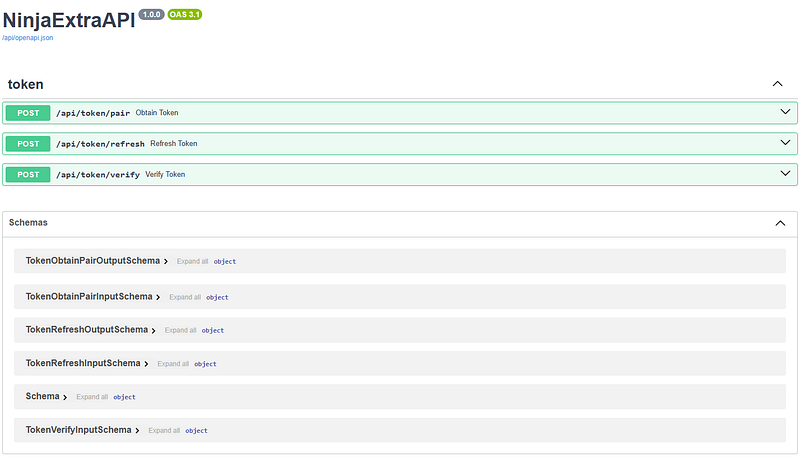
Open your browser at <your-server-ip>:8000/api/docs. You should see the API documentation.
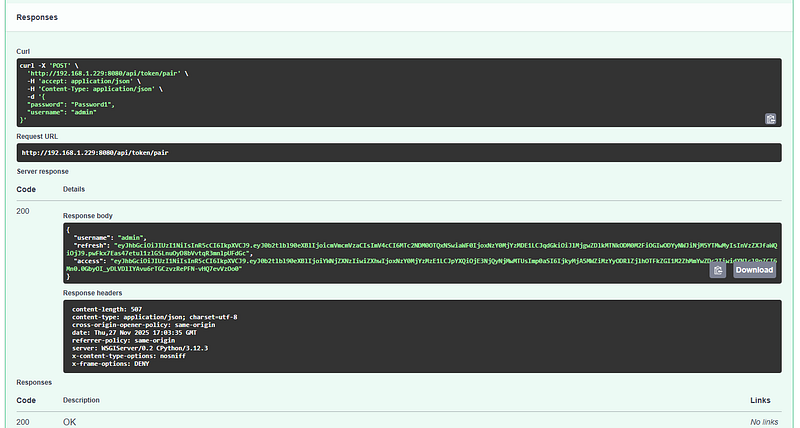
Test user login
Expandapi/token/pair API endpoint and input superuser credentials that you just created
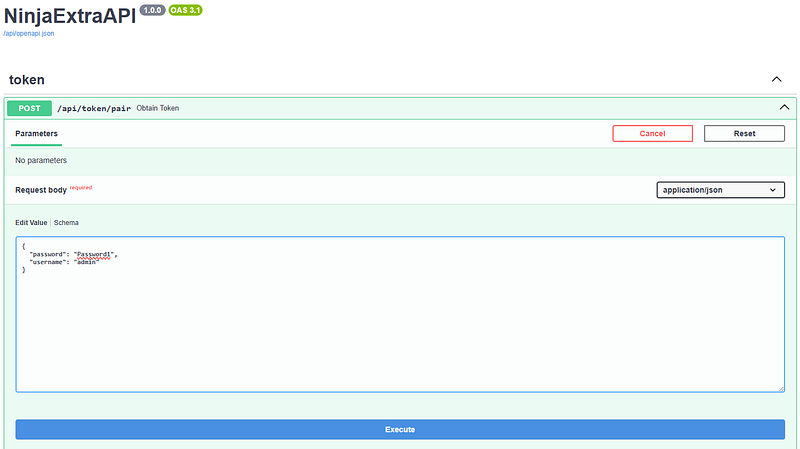
Click Execute and you should receive your Access and Refresh tokens:
Roll a Die Game: Building the AI Agent
To implement a basic AI Agent capable of using tools, we’ll add two new files to the chatbot app.
1. Define Schemas
# ai-agent/backend/src/chatbot/schemas.py

from ninja import Schema

class ChatbotMessageSchema(Schema):
    message: str
    name: str

class ChatbotResponseSchema(Schema):
    response: str
ChatbotMessageSchema structures the user input: the API will accept two string fields, message and name. The response is a single string.
2. Implement the Agent and API Endpoint
Below is the implementation of the Pydantic AI roll_dice example, wrapped in a Django Ninja API endpoint. The expected behavior: when the user picks a number, the agent uses a tool (a die rolling function) and responds based on the tool’s output.
# ai-agent/backend/src/chatbot/api.py

from ninja import Router
from .schemas import ChatbotMessageSchema, ChatbotResponseSchema

import random

from pydantic_ai import Agent, RunContext

router = Router(tags=["chatbot"])

agent = Agent(
    'ollama:qwen3:latest',
    deps_type=str,
    system_prompt=(
        "You're a dice game, you should roll the die and see if the number "
        "you get back matches the user's guess. If so, tell them they're a winner. "
        "Use the player's name in the response."
    ),
)

@agent.tool_plain
def roll_dice() -> str:
    """Roll a six-sided die and return the result."""
    print("Rolling a dice...")  # Optional: shows when the tool is called
    result = random.randint(1, 6)
    print(f"Dice rolled: {result}")  # Optional: shows the result
    return str(result)

@agent.tool
def get_player_name(ctx: RunContext[str]) -> str:
    """Get the player's name."""
    print("Getting player name...")  # Optional: shows when the tool is called
    print(f"Player name: {ctx.deps}")  # Optional: shows the name received
    return ctx.deps

def chat_with_agent(message: str, name: str) -> str:
    """Function to interact with the agent."""
    print(f"Chatting with agent. Message: {message}, Name: {name}")  # Optional: shows input
    dice_result = agent.run_sync(message, deps=name)
    print(f"Agent response: {dice_result.output}")  # Optional: shows agent output
    return dice_result.output

@router.post("/roll_a_dice")
def ai_agent(request, payload: ChatbotMessageSchema):
    response = chat_with_agent(message=payload.message, name=payload.name)
    return ChatbotResponseSchema(response=response)
Note: All print() statements are optional and included for debugging and demonstration. They let you see in the console how the workflow progresses when the agent calls its tools.
3. Register the Chatbot API Router
To make the chatbot API accessible, add these lines to your main API file:
# ai-agent/backend/src/core/api.py

from ninja_extra import NinjaExtraAPI
from ninja_jwt.controller import NinjaJWTDefaultController

from chatbot.api import router as chatbot_router # new import

api = NinjaExtraAPI()

api.register_controllers(NinjaJWTDefaultController)

api.add_router("/chatbot/", chatbot_router) # make the router accessible
4. Test the Workflow
Make sure your Django server is running, then go to:
<your-server-ip>:8000/api/docs
Now it should look like this
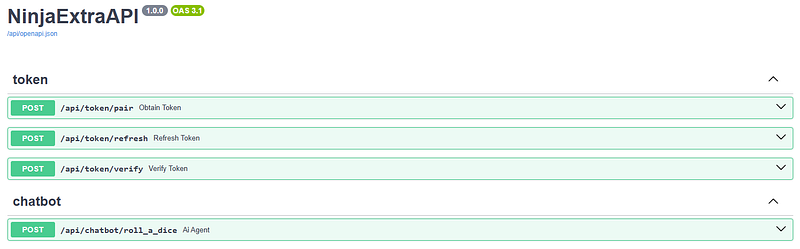
Expand the roll_a_dice endpoint and try it out.
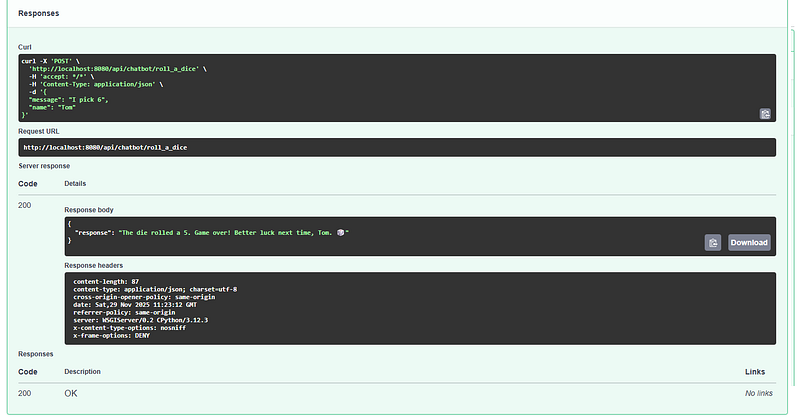
- When you send a message like
"I pick 6"and name"Tom"to the API endpoint, it triggers thechat_with_agentfunction with those parameters. - The first tool loads the name from the API request (later, you’ll see how to load it automatically for logged-in users).
- Next, the agent uses the second tool and rolls the die.
- Once the agent receives output from the tool, it responds to the user.
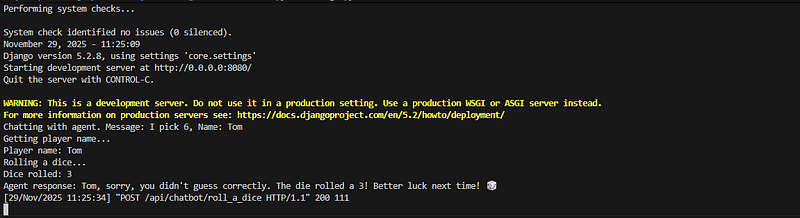
Thanks to the print statements, we can inspect the console output to see how the workload flows
Authentication
The good news is, authentication is already set up thanks to Django Ninja JWT. To require authentication for our chatbot API, we need to make a small adjustment to thecore/api.py file.
First, import the JWT authentication class and update the router registration:
# ai-agent/backend/src/core/api.py

from ninja_extra import NinjaExtraAPI
from ninja_jwt.controller import NinjaJWTDefaultController
from ninja_jwt.authentication import JWTAuth # add this import

from chatbot.api import router as chatbot_router

api = NinjaExtraAPI()

api.register_controllers(NinjaJWTDefaultController)

api.add_router("/chatbot/", chatbot_router, auth=JWTAuth()) # add auth=JWTAuth()
Now, if you refresh your API docs page you’ll notice a few changes:
- There’s an Authorize button at the top.
- The chatbot endpoint now has a padlock icon, indicating authentication is required.
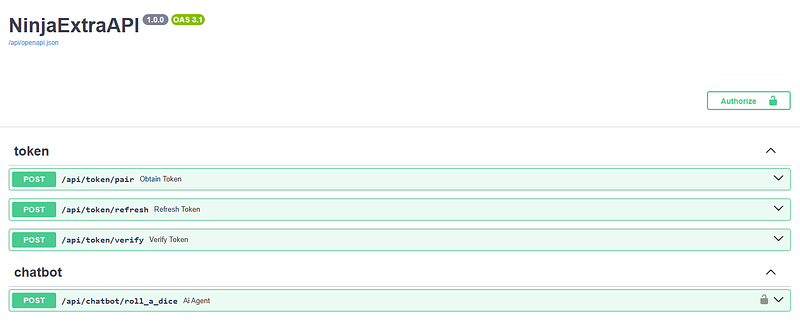
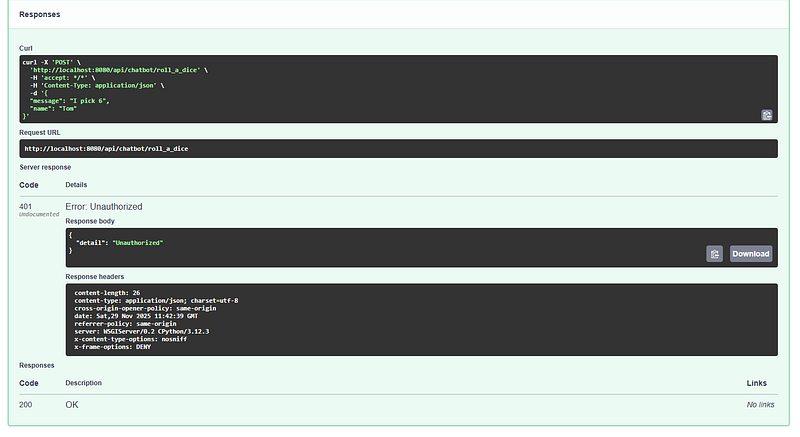
If you try to access the endpoint without logging in, you’ll see an error response (such as a 401 Unauthorized).
How to Test Authentication
- Obtain Tokens:
Expand the
Obtain Tokensection in the docs, clickTry it outand enter the username and password for your superuser (e.g.,admin/Password1). Click Execute and you’ll receive your access and refresh tokens. - Authorize: Copy the access token, click the Authorize button at the top of the docs, and paste your token. Now, you’re authenticated and can access the protected endpoints.
- Test the Endpoint:
Try the
sroll_a_diceendpoint again. You’ll see your token attached to the request, and the agent should respond as before.
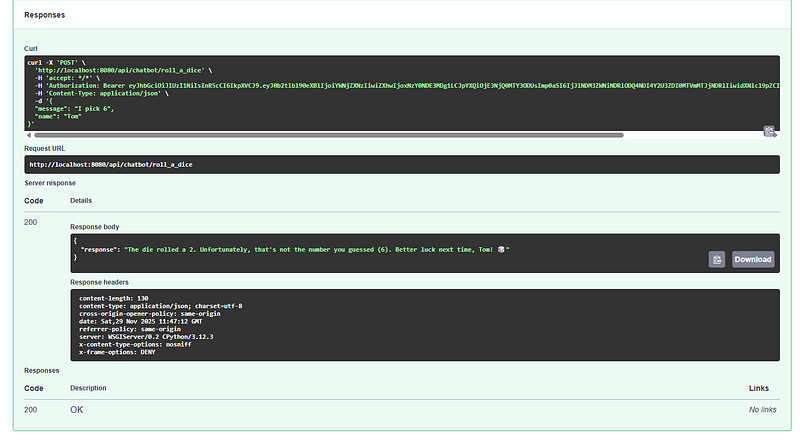
Thanks to the print statements in your code, you can inspect the console output to see the workflow:
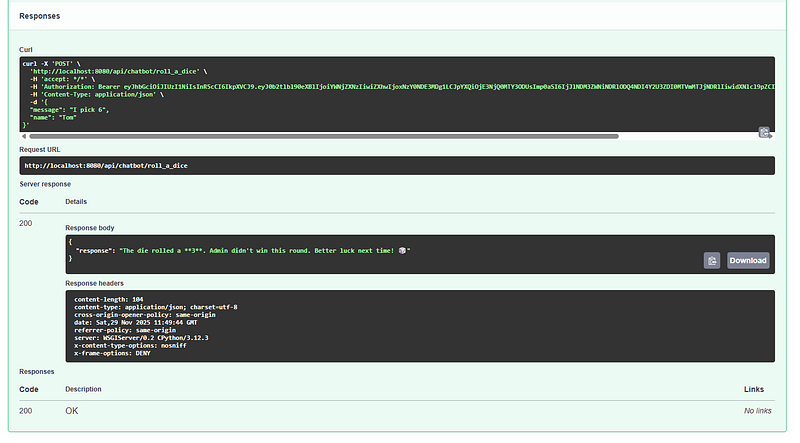
Last thing I want to show you in this part is how easy is to change the source of information that we send to LLM. Since our user is now authenticated we can access their username from request. Let’s amend one line in chatbot api.py file:
@router.post("/roll_a_dice")
def ai_agent(request, payload: ChatbotMessageSchema):
    # change the name=payload.name to name=request.user.username
    response = chat_with_agent(message=payload.message, name=request.user.username)
    return ChatbotResponseSchema(response=response)
Now, if I run the request again, name included in the API request is ignored and username from request is added to context. Name field in the API request is redundant.
Saving Your Progress in a Git Repository
Now that your AI agent project is up and running, it’s a good time to save your work and set up version control with Git. This not only protects your progress but also makes collaboration and deployment much easier.
1. Sanitize settings.py and Move Sensitive Variables
Before committing your code, make sure you don’t expose sensitive information (like secret keys, database credentials, or API endpoints) in your settings.py.
Move any sensitive variables to your environment activation script (.env/bin/activate) and reference them in settings.py using os.environ.
Example:
In .env/bin/activate, add:
# ai-agent/backend/src/.env/bin/activate

# all other parts of the script

export DJANGO_SECRET_KEY="your-very-secret-key"
export DB_NAME="myproject"
export DB_USER="myprojectuser"
export DB_PASSWORD="password"
export DB_HOST="localhost"
export DB_PORT="5432"
In settings.py, update:
# ai-agent/backend/src/core/settings.py
import os

SECRET_KEY = os.environ.get("DJANGO_SECRET_KEY", "unsafe-default-key")

# other settings

DATABASES = {
    'default': {
        'ENGINE': 'django.db.backends.postgresql_psycopg2',
        'NAME': os.environ.get('DB_NAME'),
        'USER': os.environ.get('DB_USER'),
        'PASSWORD': os.environ.get('DB_PASSWORD'),
        'HOST': os.environ.get('DB_HOST'),
        'PORT': os.environ.get('DB_PORT'),
    }
}
Repeat this for any other secrets or credentials like you DATABASES variable.
2. Create a .gitignore File
A .gitignore file tells Git which files and folders to exclude from version control.
Create a file named .gitignore in your project root (e.g., ai-agent/backend/src/.gitignore) and add the following:
# ai-agent/backend/src/.gitignore
.env/
__pycache__/
*.pyc
db.sqlite3
*.log
*.env
This will prevent your virtual environment, compiled files, database, and sensitive scripts from being tracked.
3. Initialize Git and Commit Your Work
Open your terminal in the project directory and run:
git init
git add .
git commit -m "Initial commit: Django AI agent setup with Ollama, Pydantic AI, and Ninja"
This initializes a new Git repository, adds all files (except those ignored), and saves your first commit.
4. (Optional) Connect to a Remote Repository
If you want to back up your code or collaborate, create a repository on GitHub, GitLab, or another platform, then link it:
git remote add origin https://github.com/yourusername/ai-agent.git
git push -u origin main
5. Summary
By sanitizing your settings, using environment variables, and setting up .gitignore, you keep your project secure and organized.
Committing your work to Git ensures you can track changes, collaborate, and roll back if needed.
Repository for this article is available at https://github.com/tom-mart/ai-agent
Coming next: Memory
In the next article, we’ll explore how to give your AI agent memory — allowing it to remember previous interactions, store user data, and deliver more personalized responses. You’ll learn how to implement persistent storage and context management, taking your agent beyond simple tool calls to true conversational intelligence.